.png)
One of the best parts of a Halloween party is seeing all the photos and videos everyone took throughout the night.
The problem is that they usually end up everywhere - different phones, group chats, Instagram stories - and someone eventually has to start asking for the media.
A shared digital album makes that much easier.
Guests scan one QR code, upload their photos and videos, and everything stays together in one place.
In this guide, I’ll show you how to set one up and turn your QR code into two easy Halloween decorations using our free Canva templates.
Let’s get into it. 🎃
How does a Halloween party photo QR code work?
It’s pretty simple:
Create a shared album → get the QR code → add it to your party setup → guests scan and upload.
You can put the QR on a small table sign, next to your drinks station, by a selfie mirror, or turn it into a full Halloween photo corner.
Guests scan it with their phone and go straight to the album.
How can you create a QR code for your party photos?
You have a few options.
Google Photos or Apple Photos
You can create a shared album, copy the link, and use a separate QR code generator.
For a small party, that can work perfectly fine.
The main downside is that you’re putting the setup together yourself. The album and QR are separate, customization is limited, and the guest experience can vary depending on the device or account they use.
Use an event photo-sharing platform
Another option is a platform where the album, QR code, and guest uploads are already connected.
For this setup, we used Kululu.
Kululu creates a digital album and QR code together, so guests can simply scan, upload, and view without downloading an app or signing in.
There’s a free plan for smaller parties, and you can upgrade later if you need more uploads or features without changing the QR code you already printed.
You can also display the uploads during the party using the Photo Wall, which turns the album into a live slideshow for a TV or projector.
Guests can like photos and videos too, which can be fun if you’re doing something like a costume contest.
Once your album is ready, download the QR code and add it to one of the Canva templates below.
Create your Halloween digital album with Kululu
If you’re already using another album, feel free to skip straight to the templates.
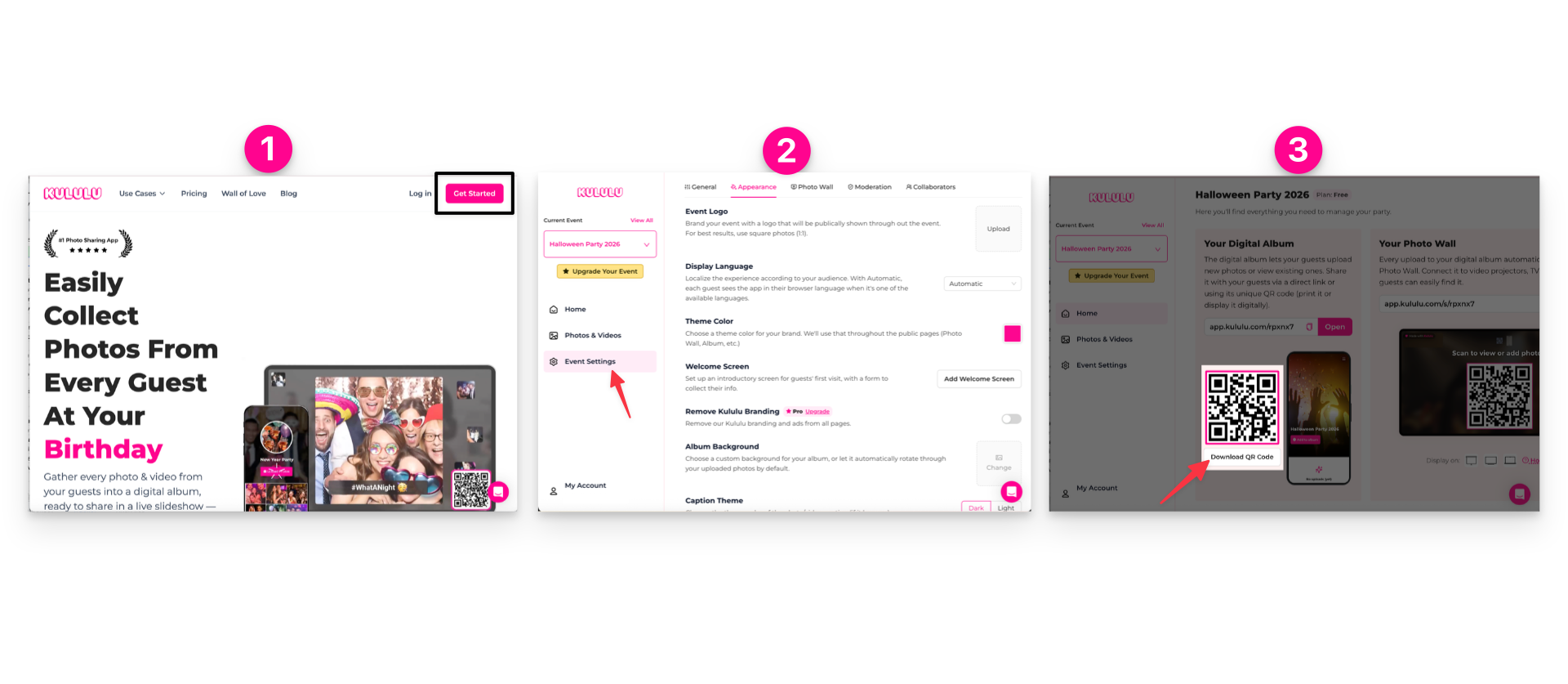
Step 1: Create your event
Create a Kululu event and add your party name and date.
Your digital album and QR code will be created automatically.
Step 2: Make it match your party
Under Event Settings, you can add a cover image and adjust the album colors.
If you need a quick Halloween palette, try:
- Burnt Orange: #A94F1F
- Deep Red: #7A1F2B
- Dark Purple: #4B2A63
You can also turn on the Welcome Screen and collect something simple, like each guest’s name, so you know who uploaded what.
Step 3: Download your QR code
Download the QR code from your event and save it to your device.
That’s what you’ll add to the Canva designs.
Now for the fun part.
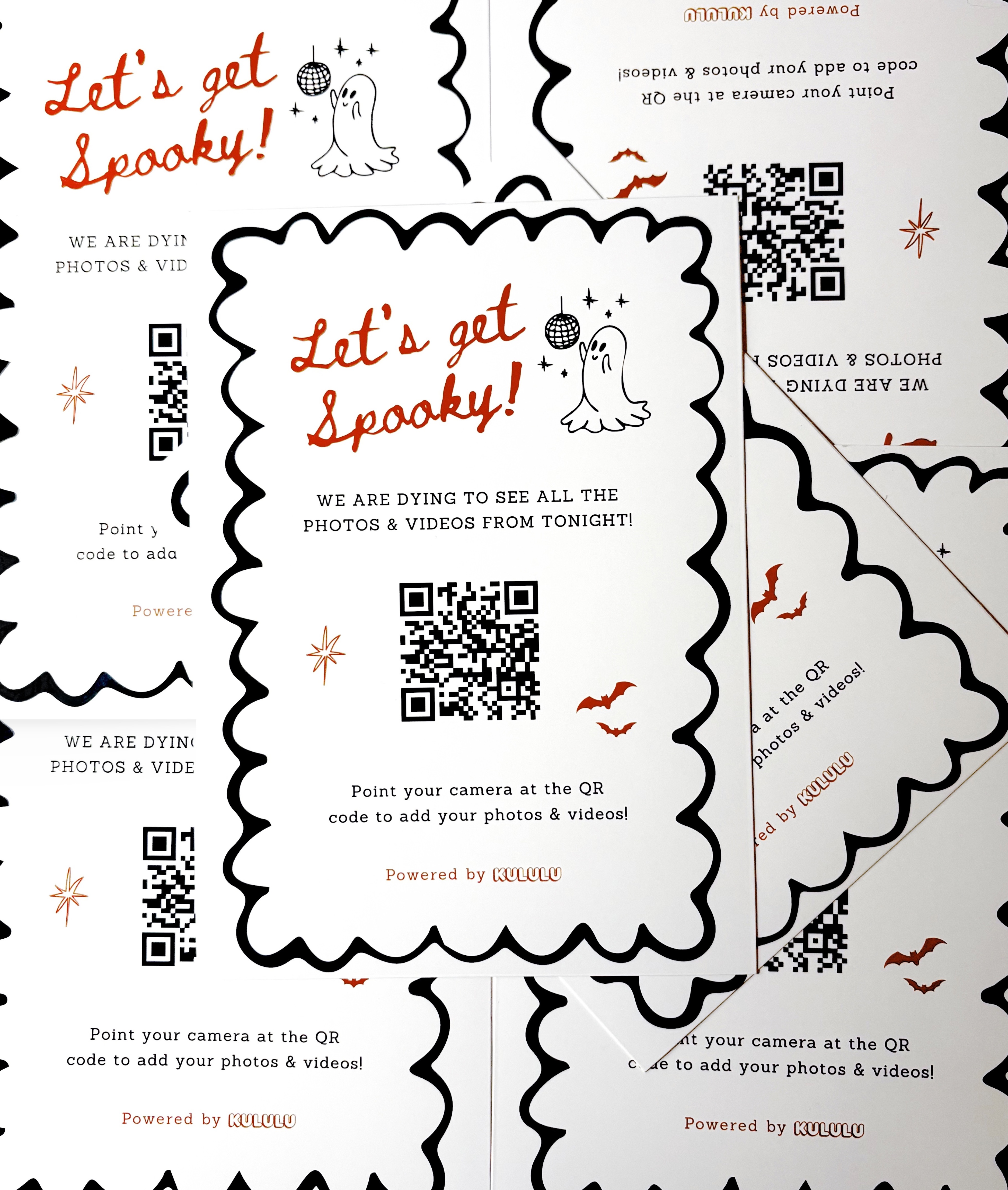
Halloween idea #1: Keep it simple with an A5 QR sign
If you want something easy, this A5 sign is probably all you need.
Add your QR code, print it, and place it somewhere guests naturally stop.
Good spots include the drinks table, snack station, entrance, or photo area.
Even better: place it near a mirror or decoration where people are already taking their phones out.
That small detail can make a big difference in how many people actually scan it.
🔗 Free Canva template: Halloween “Let’s Get Spooky” QR Sign
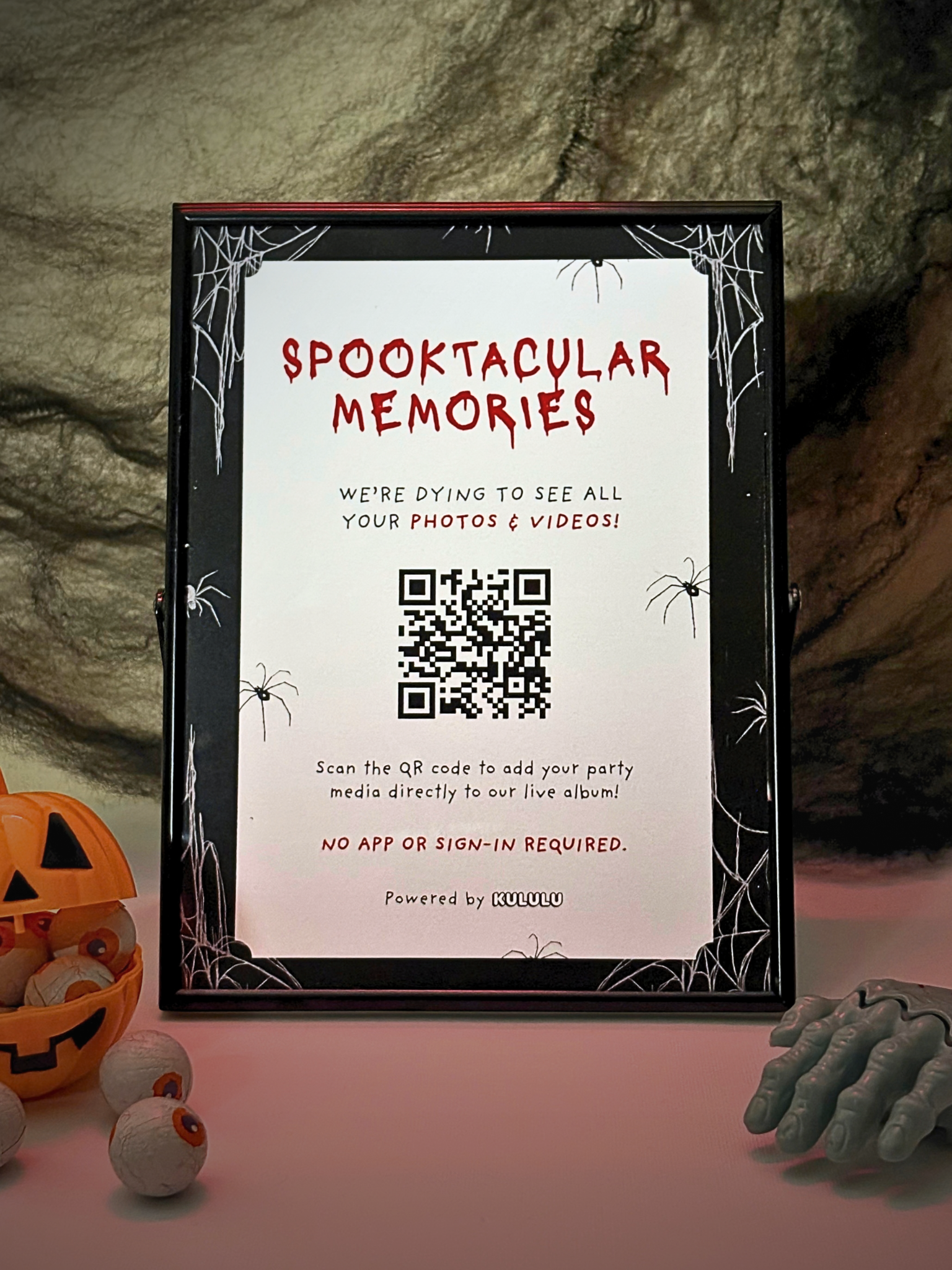
Halloween idea #2: Create a “Spooktacular Memories” station
If you want the QR code to feel more like part of the decoration, turn it into a little Halloween photo station.
You could add:
- Your printed QR sign
- Candles
- Small pumpkins
- Dried flowers
- Halloween props
- A framed mirror
- A bowl of sweets
For the mirror, you could write something like “You’re next” or “I see you” using an acrylic marker, red lipstick or lip liner.
People are already stopping there to take photos, so putting the QR nearby makes the upload part feel much more natural.
🔗 Free Canva template: “Spooktacular Memories” QR Sign
A few ways to get more guests to upload
Mention it early
Tell people about the shared album when they arrive or add the link to your party message.
A quick reminder later in the night helps too.
Put the QR where people can actually see it
Don’t hide one tiny sign in a corner.
Put it near the drinks, food, entrance, or photo area. For bigger parties, use a few copies around the space.
Put the Photo Wall on
If you have a TV or projector, open the Kululu Photo Wall and let the uploads play during the party.
Once people start seeing everyone else’s photos pop up, they’ll probably want to add theirs too.
That’s a Wrap 🎉
That’s pretty much it. Set up your album, add your QR to one of the templates and put it somewhere your guests will actually see it.
From there, everyone can add their photos and videos throughout the night, and once the party is over, you’ll have everything together in one place and ready to download.
Happy Halloween! 🎃